Memberships & Packages

Make the next visit part of the plan.

Recurring payments. Upfront package sales. More reasons to return.

For salons, spas and medspas.

Northside Studio01 / Membership

Monthly
Facial

A little time, every month.

1 service each monthRecurring
Northside Studio02 / Package

Six Facials

A series to look forward to.

Six visits. One purchase.Prepaid
Two ways to return · illustrative offers
Two ways to bring them back

Good for their routine.
Good for your business.

01 Memberships

Give regulars a reason to belong.

Included visits and member pricing for them. Recurring payments for you.

Example offer

One facial.
Every month.

Add member pricing on eligible services and retail.
02 Packages

Sell the next few visits together.

Get paid upfront for a series. Give clients a reason to keep their next visits with you.

Example offer

Six facials.
One purchase.

A clear series to return for.

Make saying yes easy.

Enroll at the desk. Enable online offers so clients can join or buy from a link.

Beyond the sale

Keep the promise easy to manage.

See payments, check benefits and choose coverage for each visit.

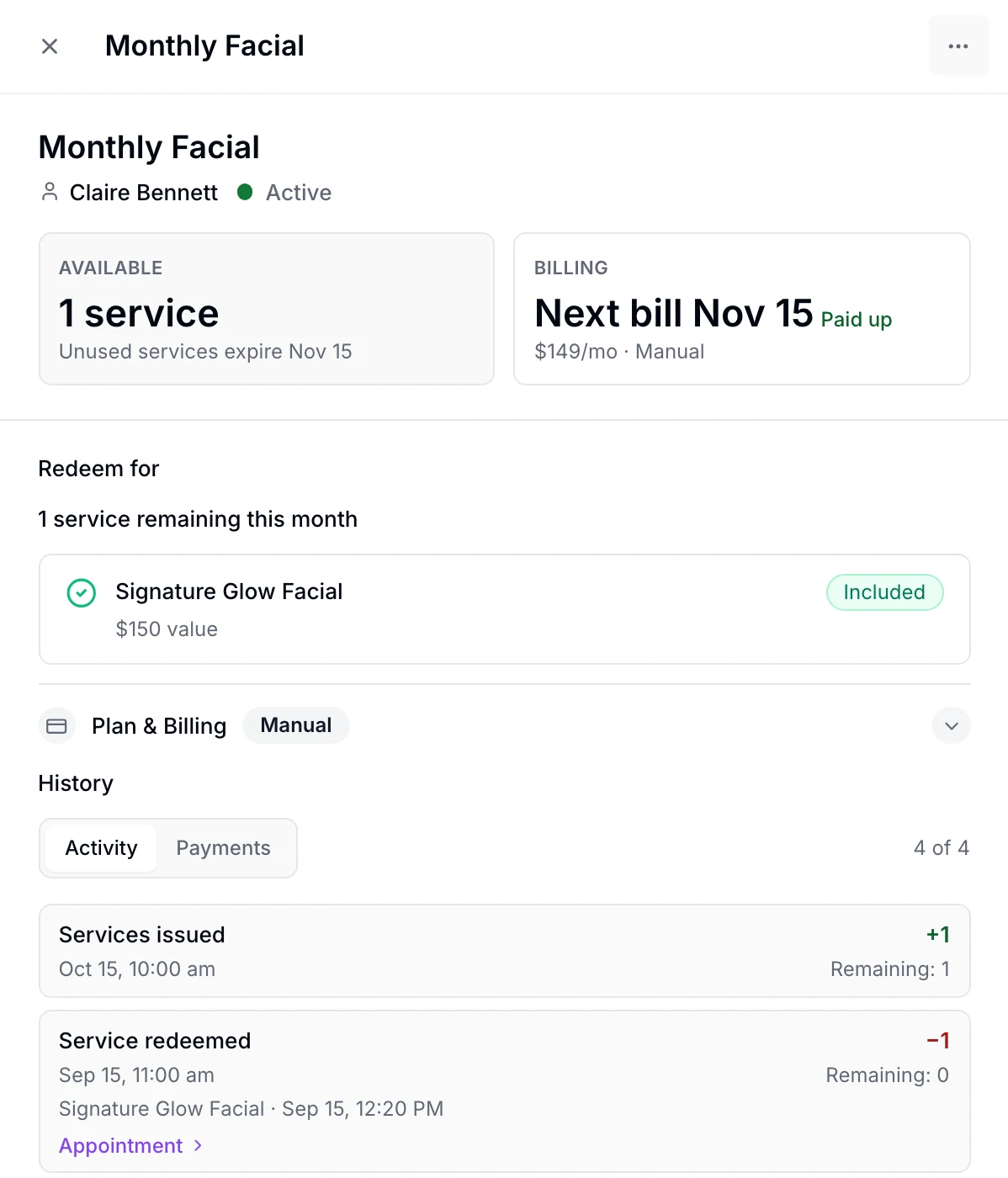
Claire’s Monthly Facial · Oct 15

1 service available
this cycle

Payment
Next bill
November 15

Example shown uses in-person billing.

View full screen (opens in a new tab)
Actual membership detail in EstheticSense: Claire Bennett's Monthly Facial, one service available, next bill November15, paid up on manual billing.
Between visits

Keep clients in the loop.

Their plan. Their remaining visits. The dates that matter.

Welcome members and keep them informed by email. Your team can send package details with visits remaining and expiry.

Explore the Client Portal
Your offers. Your settings.

The details, when you need them.

Different rules for different offers.
Explore each on its own.

Memberships

Plans and benefits
  • Name your plan and set its price and monthly or yearly billing.
  • Include specific services each cycle, or an allowance with a limit per visit and eligible services.
  • Set percentage discounts for eligible services and retail. Service eligibility and existing coverage affect when they apply.
  • Choose whether unused services carry forward to the next cycle
  • Record a commitment of 1–24 months and see its end date. This does not prevent cancellation.
  • Choose whether members use it at all your locations or only at their home location
  • Write the agreement clients accept to join, when the plan needs one
  • Choose which add-on options a plan includes; selected options are saved after enrollment, and saving them can need attention.
  • Change a plan’s name, price or member discount later
  • A plan shows the estimated value of its benefits each cycle next to its price, and an estimated saving
  • Choose which balance is offered first when a membership and package both cover a service; staff select coverage.
Joining and agreements
  • Enroll a client with an in-person first payment and issue the first cycle’s services.
  • Enroll a client with card billing; send a link for them to add their card.
  • If they already have the plan, enrollment stops and keeps the one they have
  • Ask clients to accept an agreement at the desk or from a link. Acceptance is not consistently enforced before assisted payment activation.
  • Agreement history is intended to keep accepted wording and signatures. Desk membership signatures are not retained, and link acceptance does not preserve an exact wording snapshot.
  • Clients join online by card when enrollment is enabled for the plan.
  • Online, clients see the first charge, the tax and the regular price before they pay
  • Turn on online enrollment for the plans you choose, once Stripe has approved your account
  • A client enrolled at the desk can add their card from the link they’re sent
  • Assisted enrollments left unfinished for over 30 days are cleared only when any original Stripe subscription can be safely cancelled
  • On iPhone, enroll with an in-person first payment or a texted card link. Collect an agreement on the phone or by text
Payments and renewals
  • Members keep paying the price they joined at; a later price change applies only to new members
  • Card billing collects each cycle through your connected Stripe account.
  • Record an in-person membership payment and issue that cycle’s services.
  • In-person billing sends reminders seven days before, on the due date and 1, 7 and 14 days after. Memberships suspend at 14 days overdue.
  • Send a member whose payment is late a reminder yourself
  • When a card renewal fails, the membership shows past due, the member gets an email or text with a secure link to update their card, reminders follow on days 3, 7 and 12, and the membership is suspended at 14 days.
  • After a failed card payment, the member adds a card and pays the quoted overdue invoices, one original Stripe account/customer group at a time. Only successfully recovered memberships are restored
  • A paid cycle issues its included services; staff select coverage when it is used.
  • Services carried forward must be used within the days you set
  • Membership services nearing expiry trigger an email or text reminder.
  • A membership’s history lists every payment, with any later refund beside it
  • Billing, overdue-payment recovery and refunds stay with the membership’s original Stripe account and customer, even if you reconnect Stripe
Managing members
  • In the staff web app: plans in Catalog, members in Sales › Memberships
  • In Sales › Memberships, filter members by status or search by client or plan
  • Open a membership to see its balance, eligible services, billing and payment history.
  • See memberships, available benefits and billing standing on the client’s record.
  • Paused or overdue membership benefits are held until the membership is resumed or paid up.
  • Staff can select membership benefits when booking. Reservations expire after 24 hours; client online booking does not select membership coverage.
  • Add or remove services with a reason, logged in the membership’s history
  • Pause indefinitely or for 30, 60 or 90 days. Billing, new cycle services and service expiry pause; resuming shifts the next bill by the paused period.
  • End today, at the billing-period end or on a chosen date. Remaining services have a 60-day use window after it ends.
  • Undo a scheduled end, and billing carries on from the bill day it had
  • Membership emails cover joining, pausing, resuming and ending a plan.
  • Before a client, a location or your Stripe connection is removed, their memberships are settled first
  • Staff select eligible membership coverage on the service line at checkout.
On your iPhone
  • On iPhone, open Memberships from More, filter by status and open one with its history
  • On iPhone, create and edit plans
  • On iPhone, record a payment, resend agreement or card links, send a reminder, pause, resume, end or keep a membership scheduled to end

Packages

Building your packages
  • Name the package, set its price and choose the treatments and session counts.
  • Change a package’s name, price or treatments later
  • Weight each treatment’s value inside the package with an amount or percent off; the client still pays the package price
  • A package shows what its sessions cost booked one by one, and how much it saves
  • Choose whether clients accept your agreement, and write it
  • Choose whether the client confirms a session after it’s delivered
  • Set an expiry after purchase, or choose no expiry.
  • Change a package later; ones already sold keep their price, sessions and expiry
  • Included service options are chosen when a package is sold and cannot be changed afterward.
Selling and online purchase
  • Only team members with checkout access can sell one, and the sale step says why
  • Sell a package through checkout; issue it once the sale is paid.
  • Sell a package through the app’s checkout; it’s issued once the sale is paid
  • Payment retries refer to the same purchase so the package is issued once.
  • Collect package agreement acceptance at the desk or from a link. Desk-generated documents use current wording, so they are not an exact snapshot of the accepted text.
  • Clients buy online from your EstheticSense page or a shared link when online sales are on.
  • Online, clients see the tax and total before they pay
  • A client who can’t finish paying online can get a link by email and finish the same purchase on another device
  • Turn online package sales on or off and choose the location they are billed to.
Visits and balances
  • See sessions used, held for bookings and available on each client’s package.
  • When every session is used, it says so and offers to sell another
  • For packages using confirmation by link, ask the client to confirm a delivered visit before another session is used.
  • Record a session confirmation in person at the desk
  • Email reminders before a confirmation is due
  • Select a package for a booking and reserve an eligible session.
  • Clients signed in to their account can pick their package as they book
  • Return a session used at the desk by mistake
Changes and records
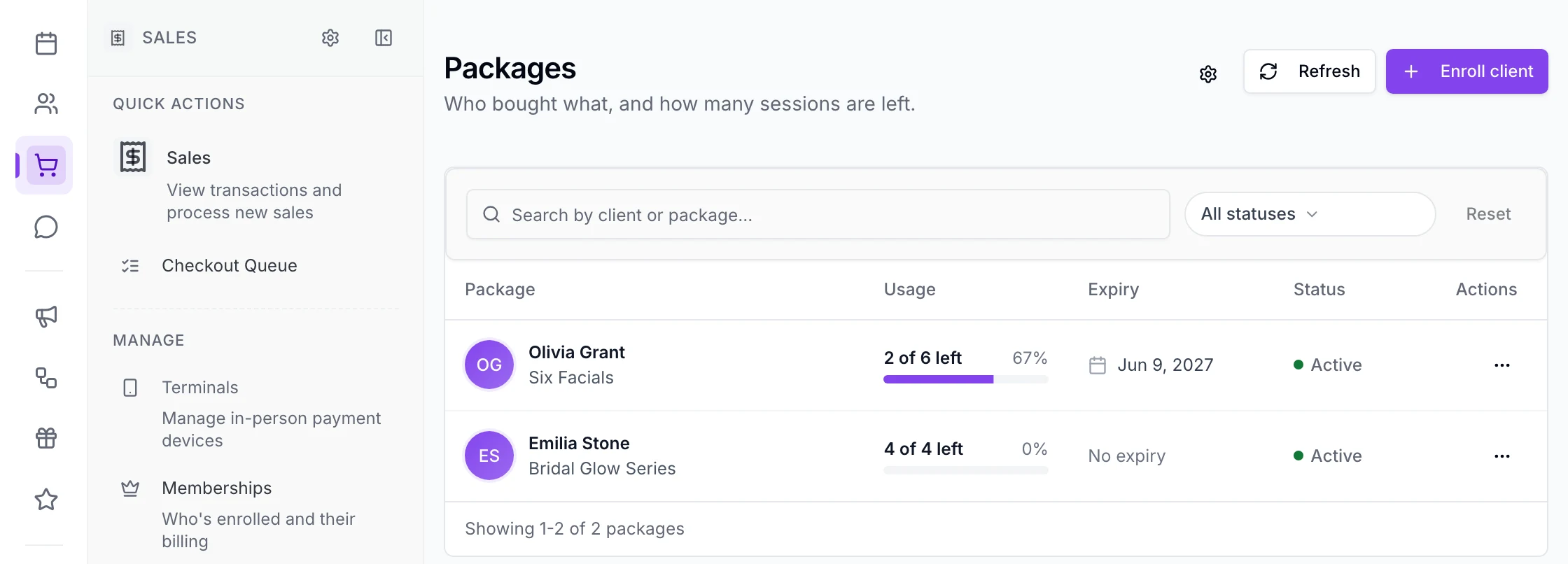
  • Find the packages of the clients you’re allowed to see, and open their details
  • Filter packages by status and search by client
  • See package expiry dates and which ones are approaching.
  • Change a client’s session count with a reason; activity records who changed what and why
  • Push a client’s expiry date later
  • Suspend or resume a package with a reason. An existing reservation may still be used after suspension.
  • Email a client their package details, session balance and expiry.
  • Record a package a client bought elsewhere, with what they paid and a reason
  • Give one as a comp or correction, with a required reason
  • Team members with catalog access, owners and managers by default, extend, suspend, resume or cancel
  • A provider’s Packages list shows their own clients’ packages
  • On iPhone, use a session at the desk for a walk-in visit.
  • What the client paid, and the value of the sessions they haven’t used
  • Return a package a client bought: the refund is capped at the paid value of sessions not yet used
  • Cancel a package with a reason; cancellation itself does not refund it. Existing reservations can still need attention.
  • After its expiry date, it’s marked expired with its unused sessions
  • If you close your account, clients’ unused paid packages are settled, refunded or exported, not deleted
On your iPhone
  • Team members who can see all clients open Packages from More and find a client’s package
  • Record a package bought elsewhere, or give one as a comp
  • Return a package a client bought, choosing which one
What does it cost?

See current plan pricing and payment costs before choosing.
See pricing →

Moving from another system?

Bring your current offers and balances to the conversation.
Plan the switch →

What should I know first?

Clients cannot pause, change or end a membership themselves yet. Packages are paid upfront and are not shared across a household. Android is outside this release. A membership’s recorded commitment does not prevent cancellation. Agreement-record limitations are listed under each offer.

Bring your ideas

See it with your services.

Explore a sample membership and package, from the offer to the next visit.