

Payments & checkout

The visit ends.The sale adds up.

The services are already there. Add the tip, collect payment and send the receipt.

Harper’s visit, as the receipt tells it

The visit is already the sale.

Start with the appointment’s services. Add what belongs. Keep one record of the visit and payment.

Illustrative receipt · example sale

  1. Service

    The booked service.

    The appointment opens as a sale with its service already on it.

  2. Add-on

    The chosen add-on.

    An add-on chosen at booking or at the chair is its own line on the sale.

  3. Tip

    The provider’s tip.

    A preset or a custom amount, recorded as owed to the provider who did the service.

  4. Payment

    Paid at the desk.

    Cash today, or a card. Finish checkout and complete the visit.

  5. Receipt

    The requested receipt.

    Completing the sale requests a receipt for the email on the client’s record.

Prices, products and receipts
  • Products found by name or SKU, on the same sale
  • Prices, tax and the amount due come from EstheticSense, and Complete stays off until the amount due is confirmed
  • Set service and product tax rates for each location, with prices including or excluding tax
  • Eligible unpaid visits from recent days wait in the checkout queue
  • When the sale completes. A receipt is requested for the email on their record.
  • If they ask again. Send the receipt again from the sale, to the email on file, if they accept service emails.
  • On paper. Print a receipt at the desk.
  • Their card number. It goes into Stripe’s own payment fields and card readers. EstheticSense never stores it.
Explore deposits
When they’re ready to pay

Use what they have. Collect what is left.

Illustrative payment · example without prepaid coverage

Choose eligible package or membership coverage, or use a gift card or store credit. Add a tip if chosen, then collect the remaining balance.

Payment choices and setup
  • Choose a preset tip, a custom amount or No tip. Take cash, a card in Stripe’s form, or a card on a Stripe reader
  • Coverage is chosen by your team. Paid add-ons not covered by a package or membership remain listed to pay
  • Tips on shared visits split by service value. On staff web, a retail-only tip goes to the team member you choose, defaulting to you
  • Part on a gift card, the rest in cash: a sale can be paid more than one way
  • Checkout follows your accepted payment methods; eligible gift cards, store credit, packages and memberships are exempt from that preference
  • Card payments start with a Stripe account for your business, opened through Stripe’s own sign-up pages
When something has to go back

Choose what goes back.

Illustrative refund and approval

Find the sale by its order number and tick the items to refund. The refund goes back to the payment it came from, and a card refund returns to the card that paid, through the same Stripe account.

Refund options and approvals
  • Choose the items and quantities to return; refund more of the sale later
  • Or refund the whole sale
  • Refunds over your limits wait for a manager, who approves or rejects them from their own account, giving a reason for rejection
  • A sale paid more than one way is refunded across the payments it came from
See the checkout in EstheticSense
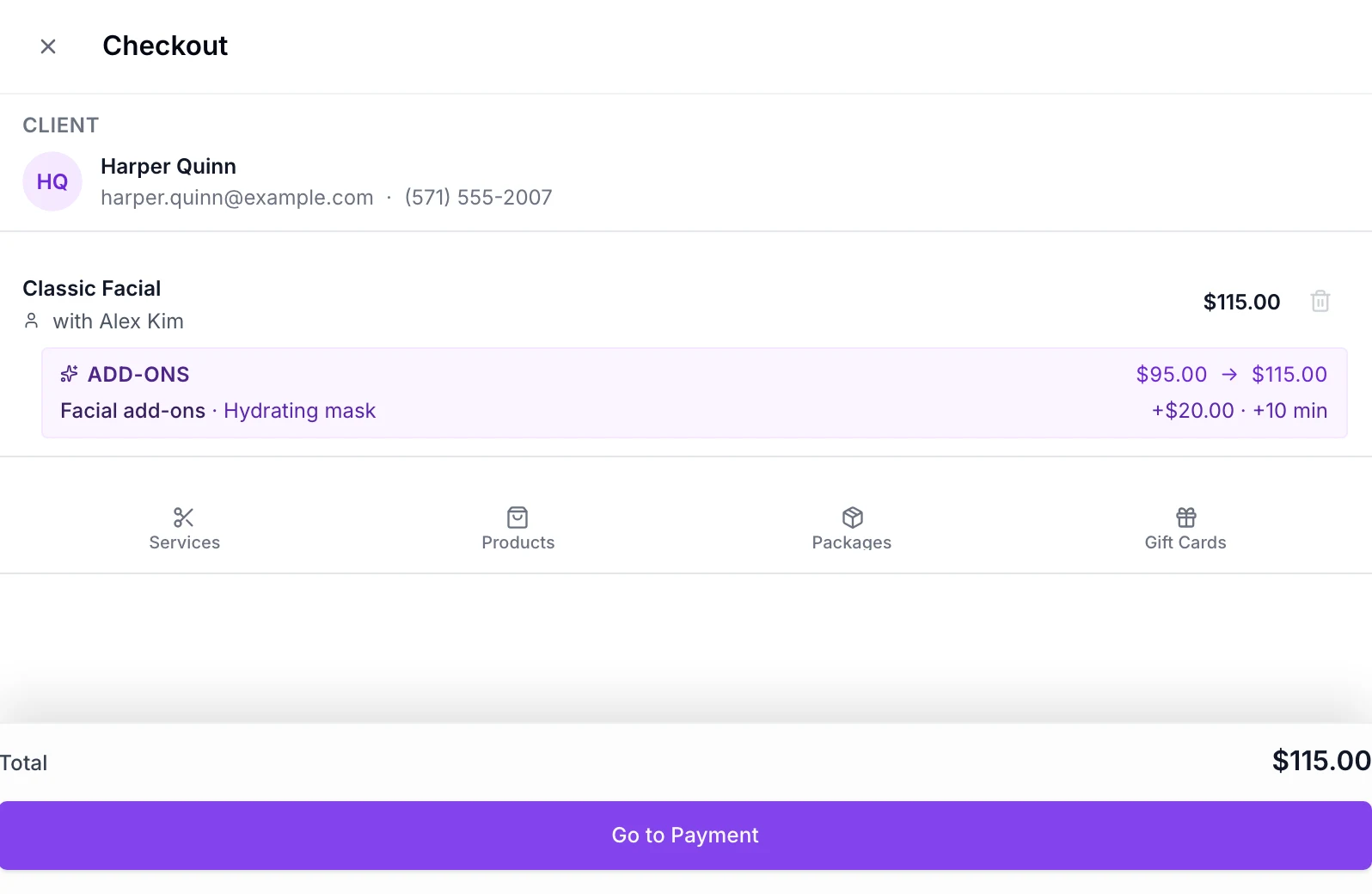
The checkout sheet for Harper Quinn’s visit in EstheticSense: her Classic Facial with Alex Kim and its Hydrating mask add-on already in the sale, the total, and the Go to Payment button.
Open full-size product capture (new tab)
Also included

The rest of checkout and payments.

Grouped by the moment you need it.

Refunds and returns
  • When a payment can’t go back where it came from, you can choose to give store credit instead
  • Refund a tip separately from the items, when your business allows tip refunds
  • Take a restocking fee off returned products when your refund settings include one
  • Refunding a visit a package paid for puts the session back on the package, with no money moving
  • Refunding a visit a membership credit paid for gives the credit back
  • A manager can cancel a payment that hasn’t settled yet
  • A manager records a refund made in Stripe against its items and tips, without issuing another refund
  • If the bank sends a refund back, it stays owed to the client until a manager records how it was repaid
  • A confirmed refund can send an email or text receipt, depending on contact details and notification settings
When a payment goes wrong
  • Retrying a checkout that already saved returns the same sale rather than recording it again
  • Sending the same refund twice, or retrying after a lost connection, doesn’t refund twice
  • If a card is charged but its sale can’t complete, ask a manager to review it; they refund the verified remaining charge from Refunds in Sales
  • When Stripe reports a payment, refund or dispute, it’s recorded once against the right business
  • When a client disputes a card payment, the sale keeps its paid history and shows the disputed amount for a manager to review; the client is not billed again automatically
  • When a payment, reader or setup step fails, your team sees a plain reason and what to do next
Building the sale
  • Sell retail products to a walk-in without a client record, unless your business asks for a client on every sale
  • Ringing up a service at the desk asks you to choose the client before payment
  • Take an amount or a percentage off a sale, or off an item added at the desk, with a reason
  • Charge a custom price for an item added at the desk, if you’re allowed to change prices
  • Turn tipping on or off for each location and choose its preset percentages
More ways to pay
  • Record a check or bank transfer when your business accepts them
  • Apple Pay or Google Pay in the web card form, on browsers that support them
  • A client’s gift card, in full or in part; the card keeps what’s left
  • A client’s store credit
  • A session from their package, which covers that service in full
  • Their membership credit for a service
  • A service credit, which you can take off again before completing
  • When a package and a membership could both pay for a service, you choose which
  • When a package or membership covers a service but not its paid add-ons, each add-on still to pay is listed
Who can do what
  • Choose who can take payments, give refunds and approve refunds; providers can check out only the services they performed
  • Only people allowed to manage billing, the owner by default, can connect or open the Stripe account and turn payments on
  • Only people allowed to manage card readers, owners and managers by default, can add or change readers
Visits still to pay
  • Open an older unpaid visit from the client’s history and collect what’s outstanding
  • Finish a visit without taking payment; its balance stays owing on the appointment until you collect it
  • Close a visit whose sale was already paid from its Checkout button, with no second cart or payment
  • Complete the checkout of a visit with nothing to pay without taking a payment
Card readers
  • Save the address where you take in-person payments as your card-reader location
  • On the web, set up a card-reader location and readers for each business location
  • Add a countertop reader with the registration code on its screen, and give it a name
  • On iPhone, pair a Stripe M2 Bluetooth reader, including any update it needs
  • See whether each reader is online, offline or needs attention, and when it was last seen
  • On iPhone, rename a reader or retire one you no longer use
  • A reader takes one payment at a time, so another device can’t take over a payment in progress
  • Tap to Pay on iPhone set-up, for contactless cards without a separate reader
Setting up card payments
  • Follow a guided checklist on the web: your details, Stripe’s verification, card readers, then a test payment
  • Pick up Stripe setup where you left off; an expired Stripe link opens a fresh one
  • See whether your Stripe account is ready, under review or needs something from you, in plain words
  • That status updates when Stripe changes it, without anyone checking again
  • Open your Stripe account from EstheticSense to manage your bank details and verification in Stripe
  • Card options need a ready Stripe account; in-person card payments also need a ready reader or Tap to Pay setup
  • Run a small test payment on your reader and record the result before your first client checkout
  • Turn payments on yourself once setup is complete; until then you’re shown what’s still missing
On the web and on iPhone
  • In the staff web app: Sales, the checkout queue and Refunds
  • In the staff web app: payment setup in Settings, readers in Sales
  • In the iPhone app: the Sales hub with new sales, transactions, the queue and refunds
  • In the iPhone app: Payments & devices, under More
  • On iPhone, start a new sale, add products or services and take payment
  • On iPhone, check out a visit from its appointment or today’s queue
  • On iPhone, take a card in Stripe’s payment sheet
  • On iPhone, take Apple Pay in Stripe’s payment sheet
  • On iPhone, take a card on a Stripe reader over the internet or Bluetooth
  • On iPhone, a contactless card payment with Tap to Pay
  • On iPhone, take a discount off a sale or an added item, or set a custom price, if you’re allowed
  • On iPhone, add a tip and see how it’s shared between providers
  • On iPhone, take a gift card or store credit, and use a package or membership on a visit’s services
  • On iPhone, refund a sale by choosing the items; managers approve or reject waiting refunds

Before you decide

Switching from another tool?

Plan the move before anything changes at your business.

Plan the switch →
What does it cost?

See what the one plan includes.

See pricing →
Not available yet

Charging a card a client saved earlier, a receipt by text message, putting a sale aside to finish later, an end-of-day close, a cash drawer count, money back as goodwill with nothing returned, refunding an arbitrary amount from a line or an add-on by itself, wallets such as PayPal, bank payments processed for you, a Stripe account you opened elsewhere, a processor other than Stripe, turning payments off yourself, Tap to Pay on Android and the Android app. Staff choose when a package or membership pays; it isn’t applied for them.

Not planned: card payments without a connection, sales tax filing or bookkeeping, and a separate iPad or desktop app.

Related Online bookingMemberships & packagesGift cardsCalendar & scheduling

See it with your own checkout

End the visit on a clear note.

Follow a sample appointment through checkout, payment, receipt and refund.

$19 first provider · $149 maximum per location