

The iPhone app

Keep the day moving, wherever you are.

Check the day, bring the client record into the room and finish a visit from your iPhone.

For iPhone. Some setup steps open on the web.

Work happens between places

Less tied to the desk.

The next appointment, the client’s reply, the team’s request. Keep them within reach as you move through the day.

  1. Between clients

    Know what comes next.

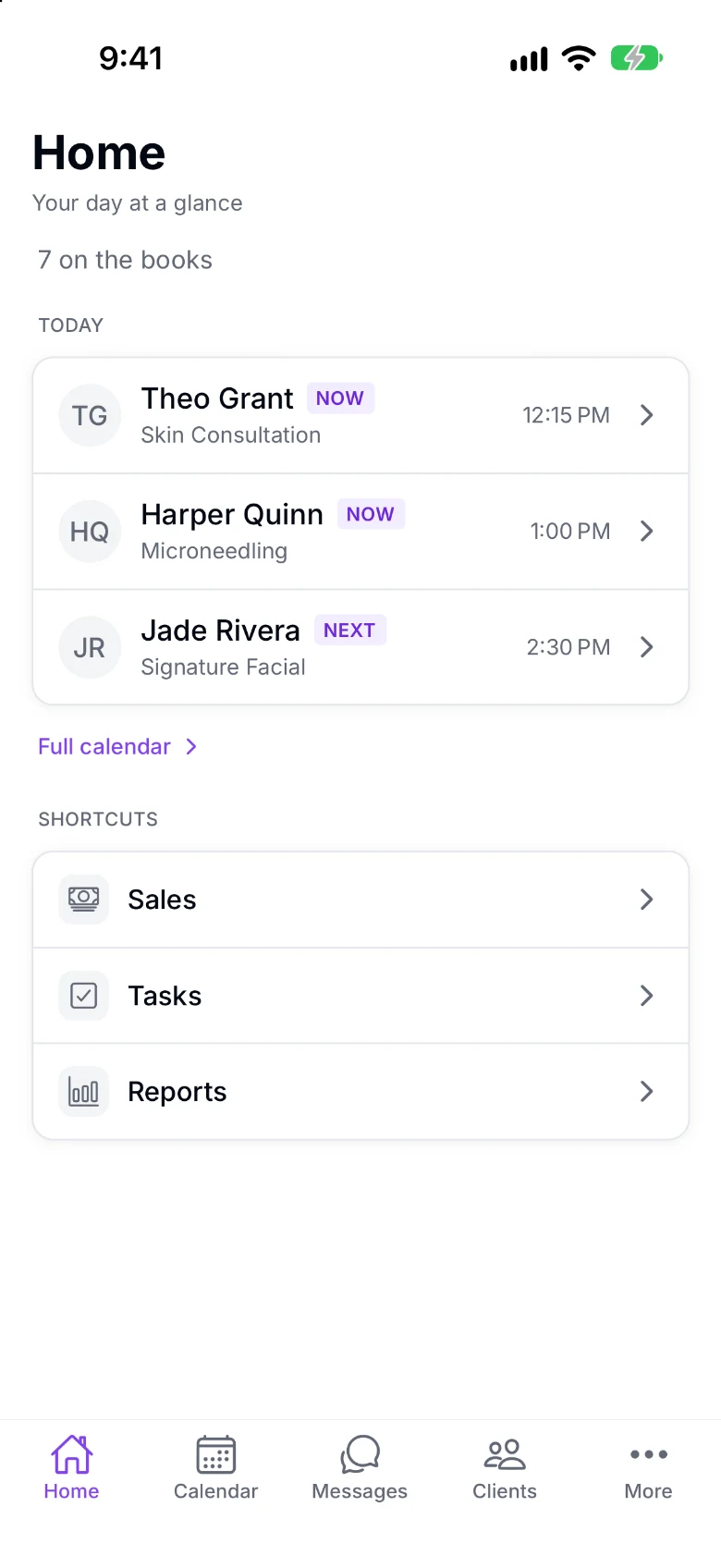
    Appointments, tasks and replies that need you, on Home.

  2. In the room

    Keep the visit together.

    The record, note, photo and forms beside the appointment.

  3. Away from the desk

    Pick up the conversation.

    Reply to a client or review a time-off request from the app.

An example day, from first visit to last reply
  1. 7:50

    One line on the day.

    Home opens with the appointments on the books and the messages needing a reply; her next appointment, tasks due and today’s sales so far underneath.

  2. 9:15

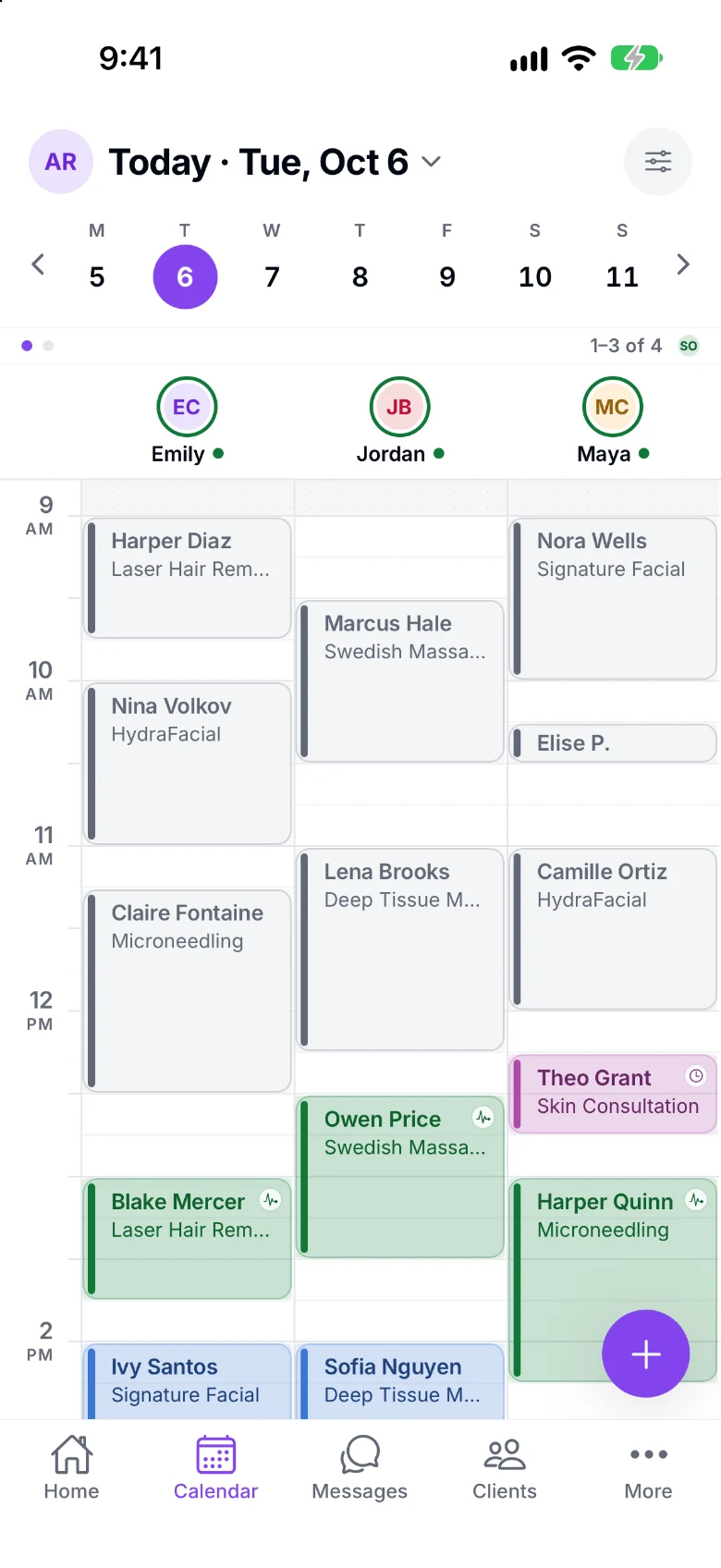
    Nora checks in from the day calendar.

    The day, booking, the appointment, check-in and the staff waitlist, in the app.

  3. 9:20

    The consent, on the phone, handed over.

    Nora’s visit shows its forms; Maya hands her the iPhone to fill in and sign, with the rest of the app locked until staff unlock it using Face ID or the device passcode.

  4. 9:30

    The before photo, then the note.

    Take a photo for the visit. Choose to copy a same-service prior note as a starting point, with safety details in view.

  5. 10:35

    The card on the iPhone itself.

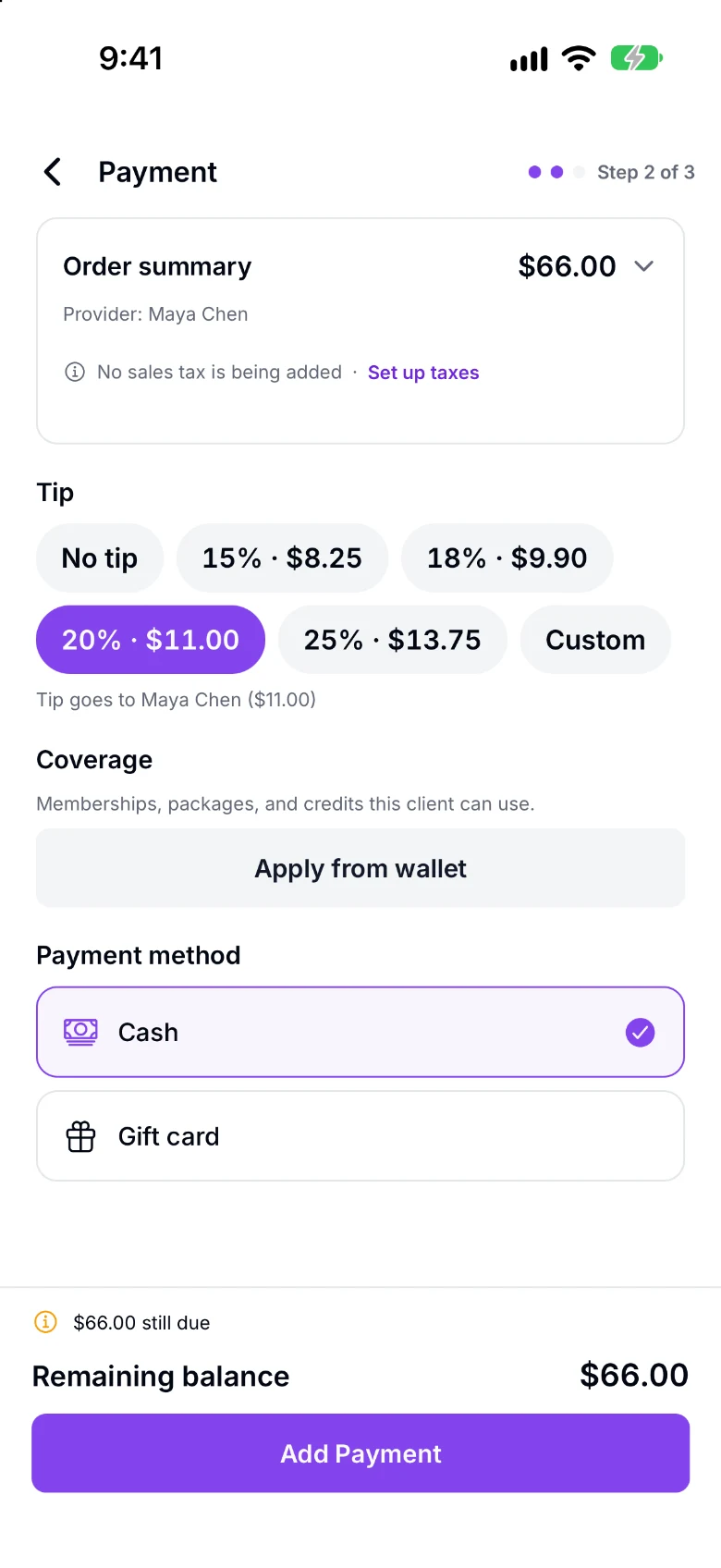
    Checked out from the appointment: the tip, the gift card balance she wanted to use, then Tap to Pay on iPhone, no reader.

  6. 1:10

    A text, with the photo.

    Harper asks which serum it was; Maya answers from the thread with a photo and a quick reply.

  7. 3:40

    Alex’s Friday, approved.

    Approve or decline a time-off request, undo immediately, and review this month’s decisions.

  8. 8:05

    A tap: Thursday just got booked.

    For the signed-in business, receive booked, assigned, changed, cancelled and one-hour-before alerts for appointments with you. Opening one reaches the appointment even from a closed app; lock screens omit treatments and client contact details.

In the room

Bring the record into the room.

Illustrative iPhone client record

See the client’s details and last visit’s note. Add today’s note and photo while the visit is fresh.

Records, photos and forms
  • Find clients by name or phone, filter by last visit or tag, and add a client with duplicate-number checking
  • Write a service note from its link or while completing the visit
  • Read submitted answers or only their status according to access; review decisions open on the web
  • Closing a note with unsaved words asks before discarding them
  • Browse photos by type, pairs or timeline, open them full screen, or see photos from the appointment
  • Send a client their forms link, or a reminder about an unfinished form
  • Merge duplicate clients with the same review and safety rules as the web
At the chair

Finish the visit from your phone.

Illustrative iPhone checkout

Open checkout from the appointment. Choose eligible gift card, package or membership value, add the tip and collect what remains, with card options including Tap to Pay on iPhone.

Payment and refund options
  • Start a new sale, or check out from an appointment or today’s queue
  • Take a card or Apple Pay in Stripe’s payment sheet, or use a Stripe reader over the internet or Bluetooth
  • Choose gift card, store credit, package or membership value where eligible; your team applies coverage
  • Choose items to refund; a manager approves when required
  • Set up Tap to Pay on iPhone, with no separate reader
  • Discount a sale or an added item, or set an added item’s custom price, if permitted
  • Sell a gift card or a package through checkout
  • Apply a promotion code and see its discount before paying
For your team: sign-in, notifications, hours and earnings
  • Sign in and stay signed in. A six-digit code by email or a password; the app keeps you signed in; sign out from your profile.
  • Push, on their terms. Turn push on from My Profile, where phone permission is requested. Signing out or switching it off stops it; a push reaching no device is not delivered.
  • Their own hours and time off. Request time off, track its status or cancel a pending request. Staff allowed to manage their own calendar can change weekly hours with booking preview and immediate undo. They can also edit their own bio and photo.
  • Their own pay. Today’s earnings, the week, month and pending totals, and their own rate on Pay & earnings.
Also included

Everything else in the app.

Grouped by the feature it belongs to, each with its own page.

Billing & usage
  • See your plan and how it is paid, credits and this month’s included usage
  • Subscription status is shared across web and iPhone; changes happen where it was bought
  • When in-app purchase is unavailable, the app explains this with no buy button or web-checkout fallback for the subscription
  • An owner without a saved card can add seven days once, during the last two trial days
Explore Billing & usage →
Your day & setup
  • Settings for areas such as Reviews or Campaigns require permission to manage that area
  • If you work at more than one business, choose which one to open at sign-in
  • A sign-in lasts at most seven days before you sign in again
  • Request an email link to reset your own password
  • Send a password-reset email to a team member
  • Shortcuts on Home to Sales, Reviews, Tasks, Referrals, Campaigns and Reports, each only for people who can open it
  • Sign up with the same steps as on the web, from the email code to the phone check
  • Free-trial progress on Home
  • Your trial counts a Booked Week once three appointments fall within seven days with at least one for a real client, and the meter shows your progress toward it
  • When a trial has ended, one read-only notice on Home, with Billing within reach
  • Calendar setup, with Finish later and Resume from Home
  • From More, view Setup for one location, set outcomes aside or add them back, and open the place each gets done
  • Ask for help moving your clients from Bring your clients in, and see that the request is recorded
  • Open online-booking or medspa review on the web, or use a private continuation link for the same account and location
  • Settings in the app
  • A Setup step opens its exact setting for the same location; it counts as done only after saving
  • Search Settings by what you want to do, such as “no show”
  • Money and client-facing policy edits wait for review before Apply; restoring location defaults is immediate
  • A setting changed on the web says where, and offers to copy its link
  • Team members who can only view settings see the values, with no controls
  • Edit your business name, contact details and hours, and add and edit locations
Explore Your day & setup →
Clients & photos
  • Edit contact and safety details, tags, quick and staff notes, and message preferences; archive or restore the client
  • Pair an after photo with its before photo and compare side by side or with a slider
  • Change a photo’s type, body area or note, unpair it, or delete it
  • History on a service: the client’s visits of it, newest first, each with its note
  • A client’s service notes on their Notes tab, searchable; the last visit’s note on Overview
  • Media in the app
  • Make a photo public or private
  • Choose from your photos for a treatment, product, package or your website
  • Record a client photo’s marketing consent
Explore Clients & photos →
Forms
  • See how many visit forms are complete, add forms or remove ones not yet submitted
  • Open the staff checklist from the appointment or service note, record what was done and save it to the visit
  • Create, edit, duplicate, preview, archive and restore templates, blank or from a starter
Explore Forms →
Sales, gift cards, packages & memberships
  • Use a package session at the desk without an appointment or sale, with appointment or checkout access
  • Pair a Stripe M2 Bluetooth reader, finish any needed update and save it to its reader location
  • Rename a reader or retire one you no longer use
  • Card setup opens a business account through Stripe’s own sign-up pages
  • See the total gift-card value currently available to spend
  • Share your gift-card purchase link once online sales are ready
  • Define gift cards in Catalog, with a fixed value or custom amount range and a selling price; the custom amount range is edited on the web
  • Sales & Checkout in the app
  • Payment setup in the app
  • See an appointment’s deposit status, including money still owed and a refund the bank sent back
  • Deposit refund timing, and whether deposits are kept on no-shows and late cancellations
  • Promotions as active, scheduled and past; pause, resume, extend or end one
  • From More, find gift cards by code or client within your client-access permissions
  • Search and open client packages from More; this native view requires access to all clients
  • Record a package bought elsewhere, or give one as a comp
  • Sell a package through checkout; it is issued once the sale is paid
  • Return a package a client bought, choosing which one
  • Members with their plan, balance and status, and each membership’s history
  • Create and edit membership plans and their member discounts
  • Enroll with manual billing and its first payment, or card billing through a texted link; sign the agreement on the phone or send it by text
  • Record payments, send reminders, resend agreement or card links, and pause, resume, cancel or keep a membership
Explore Sales, gift cards, packages & memberships →
Catalog, services & stock
  • Change quantities on an existing draft purchase order before submitting it
  • Catalog from More: any part of what you sell, searchable, with each item’s details
  • Turn online booking or buying on or off for an item; choose its locations and price
  • Retire an item and bring it back later
  • Delete an item after confirming
  • Reorder, edit and delete your categories
  • If an item or category changed while you edited, keep your unsaved work and review the latest before saving again
  • Add a service or edit its price, duration, processing time, category, buffer, rooms, equipment, instructions and providers
  • Create and edit add-ons and their choices, and attach them to services
  • Add or edit a product’s name, retail price and tax-free setting
  • Inventory in the app
  • Count, adjust and receive a product’s stock at a location, with its history
  • Turn low stock into draft orders; submit, email, cancel and receive purchase orders
  • Add and edit your suppliers
Explore Catalog, services & stock →
Texting, reviews, referrals, campaigns & routines
  • Text with photos and quick replies, schedule texts, add internal notes, and assign or archive conversations
  • Before sending or scheduling, review recipients and exclusions, location, sender, booking link, time zone and the texts or credits needed against your balance
  • Choose service by service which visits qualify for referral rewards
  • Send review invitations by email
  • Set up texting: register your business, then get a new number or keep your own
  • Reviews in the app
  • The Referral Program in the app
  • Campaigns in the app
  • Set up and test routines, turn them on or request activation, change timing, see activity, pause and resume
  • Set up, check, turn on, pause and resume the reminder to book the next visit
Explore Texting, reviews, referrals, campaigns & routines →
Your website
  • See what your site needs, make quick edits, preview it and put it online
  • Your site: private or live, what it still needs, and any change waiting to go live
  • Publish after viewing the site at desktop width and, when online booking is available, testing a Book button
  • Fix phone, email and city, choose street-address visibility, edit About and service descriptions, and choose visible services
  • Take or choose photos for your site’s gallery
  • Share your live address or QR code, or send yourself a link for bigger edits on a computer
  • A Your site card on Home, only when your site needs you
Explore Your website →
Reports, expenses & pay
  • Browse, search, run and filter reports
  • Export a report and download or share the finished file from its History
  • Log, review and export expenses
  • Commissions, tips and pay in the app
  • With manager permissions, filter commission and tip lines, see totals, and approve, void or mark lines paid individually or in a batch
  • Set or change pay agreements for a location, including custom service rates
Explore Reports, expenses & pay →
Team & time
  • Staff in the app
  • See and search your team, open a team member’s record, and invite someone new
  • Change a team member’s hours, services, locations, permissions and details
  • Time Clock in the app
Explore Team & time →

Before you decide

Switching from another tool?

Once your business is set up, sign in to the same workspace on iPhone. Ask for migration help before moving client records.

Plan the switch →
What does it cost?

Pricing is on one page.

See pricing →
Not available yet

Android is later. Some setup and a few settings still open on the web from the app, and the app tells you which. Card payments on the phone wait on the same payment checks as the desk.

Related Your dayAppointments & calendarPayments & checkoutTwo-way texting

See the iPhone experience

See your working day in your hand.

Walk through the day calendar, a client visit and checkout in an app demo.

$19 first provider · $149 maximum per location