
Services & menu

A clear menu.
Less guesswork.

Prices, timing, team and extras—organized around each service.

For salons, spas and medspas.

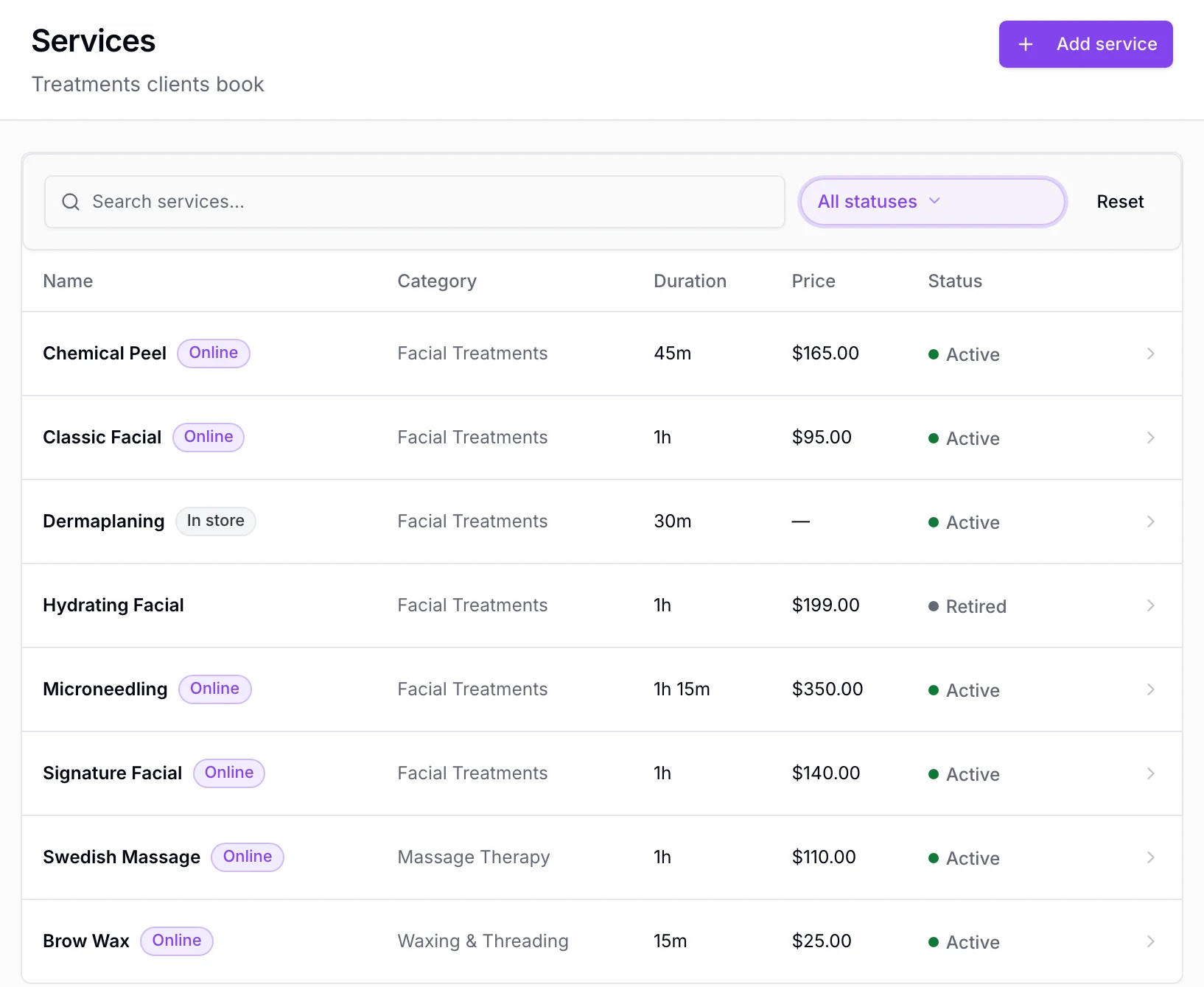
The Services catalog at Northside Studio, showing service names, lengths, prices and availability.
View catalog screen (opens in a new tab)
Behind every service

Know what each booking needs.

The time, the team, the room. Keep the details together, so there’s less to ask.

Example service · Northside Studio

Facial Treatments

Microneedling

$350

Service time
75 min
Prep / reset
10 min / 15 min
Team
Maya or Jordan
Space
Treatment room

One service, with its working details.

The finishing touches

Make extras part of the service.

An extra treatment. A little more time. A scent they prefer. Give each choice a place in the booking.

Set a price and added time, or offer a choice at no extra charge.

From your menu to their next visit

Show clients what they can book.

Group your services. Choose what’s offered online and at each location. Give clients a clear place to start.

Website menu changes go live after you publish again.

Location prices appear on public catalog cards. Online booking currently uses the service’s base price.

Also included

The details, when you need them.

Service setup, menu controls and team access.

Setting up a service
  • Add a name, description and length; set a price now or later.
  • Assign a category and team members; require any available item of a room or equipment type, or one specific item.
  • Set prep and reset time. Set hands-off processing and finishing lengths, and choose whether online booking may use the processing time.
  • Booking length is calculated from the service and selected extras; staff can adjust it.
  • Write before- and after-visit care instructions on the service.
  • Choose online booking availability and a booking note; mark the service tax-free when applicable.
  • Duplicate a service to start a similar one.
  • One business currency is the intended setup. Matching currencies across services and add-ons is not yet enforced.
Choices and add-ons
  • Edit, duplicate, retire or delete options in the add-on library; attach choices to multiple services.
  • Add a price and extra time, or record a no-charge preference.
  • Allow one choice or several; require an offered add-on choice before saving a booking, unless the membership or package already supplies it.
  • Choose where each add-on appears: online or staff booking, appointments or service notes.
  • Review affected services before changing a shared add-on; update them together or keep a separate copy.
Your menu online
  • Clients browse your public menu; Book now and Buy now appear on eligible items.
  • Unpriced services show no price and are not offered for online booking.
  • See what an item needs before switching it on for online sales.
  • See whether each item is online, in store, hidden or retired.
  • Choose offers by location. Location-selected public catalog cards show that location’s price; online booking uses the base service price.
  • Change service and category web addresses; old addresses forward after the next website publish.
Keeping the catalog organized
  • Search by name and filter the web lists to active or retired items.
  • Create and order categories; rename, retire or delete empty ones.
  • Retire items and bring them back; confirm before deleting. Past sales keep their history.
  • Add photos to services, products and packages; choose the main photo and order the rest.
  • List a treatment once in a package; increase its session count for more visits.
  • If another person edits an item, review the latest version before saving.
Who can see and change what
  • Catalog permissions control service and add-on changes, including who performs each service.
  • Owners and managers have catalog access by default; other team members can open item details.
  • Without catalog access, cost, supplier and other locations’ setup stay hidden; staff see items offered where they work.
On your iPhone
  • Open Catalog from More; search and open what you sell.
  • Add a service and change its price, length, team, category, timing, resources and care instructions.
  • Create, change and attach add-ons and their choices.
  • Choose locations, location prices and online availability.
  • Retire, restore or delete items; reorder and maintain categories.
  • Review the latest version when someone else changes an item you’re editing.

Before you decide

Switching from another tool?

Bring your current menu to the conversation. We’ll show how a service is organized in EstheticSense.

Plan the switch
What does it cost?

The catalog is included in the subscription.

See pricing
What’s outside this release?

Android; offering an add-on at only some locations, or changing its choice prices and time by location; rooms or equipment assigned to an add-on; separate permissions for editing items and changing where they sell.

Related Online bookingAppointments & calendarWebsite builderProducts & inventory

Bring your menu

Your menu. Let’s make it work.

See a sample service take shape: timing, team and extras included.